Thanks to Giovani Ortolani Barbosa for reminding me about this possibility within Google Tag Manager and thus inspiring this blog post.
If you’re running server-side Google Tag Manager (SGTM), you’re probably sending your Google Analytics events directly to SGTM, where they are then forwarded to Google, Meta, LinkedIn, and any number of other vendor endpoints.
While doing so, you might have considered the possibility of only sending a part of the GA stream to SGTM, and having the rest go directly to Google’s CDN. Now, why would you consider this? Well, here are some reasons:
- You might want to reduce the load on SGTM by only sending business-critical events.
- Conversely, you might want to send business-critical events directly to Google to prevent SGTM outages from breaking your data.
- You might want to reduce the cost of running SGTM.
There are many reasons, and I think the cost aspect especially is one that might be significant to many.
In this article, I’ll show you how to configure the routing tag by tag, and also what to watch out for when orchestrating these pathways.
XThe Simmer Newsletter
Subscribe to the Simmer newsletter to get the latest news and content from Simo Ahava into your email inbox!
Tip 142: Route only some GA events server-side
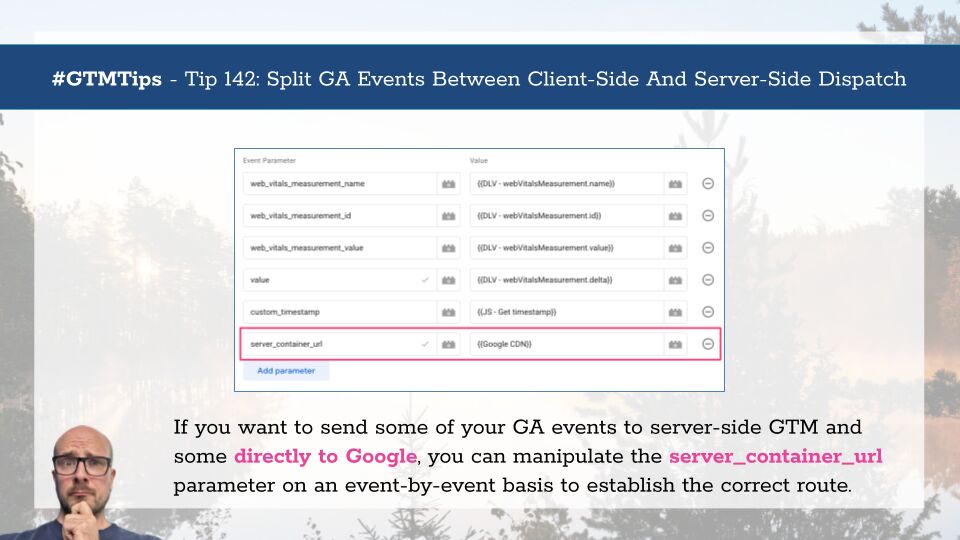
To make this happen, you need to manipulate the server_container_url parameter.
Now, I recommend always setting it in the configuration settings of the Google Tag to point to your SGTM endpoint. Doing so enables all automatically collected events to flow through SGTM, and it makes SGTM dispatch the default.

The only exception to this recommendation is if you actually want SGTM dispatch to be the exception and you want to reserve it for just a handful of key events. In that case, don’t add
server_container_urlto the Google Tag.
Setting this in the Google Tag ensures that any event tag configured for the same Measurement ID running after this Google Tag will automatically benefit from the server_container_url setting.
Having said that, I recommend also adding the server_container_url to an Event Settings Variable (or variables if you have a use for more than one) as a failsafe. This way, if the event tag happens to fire before the Google Tag, or some other on-page conflict resets the Google Tag settings, the event tags will still dispatch directly to SGTM:

Override server_container_url
OK, but you already knew all of this. So how do you override server_container_url so that it reverts back to dispatching directly to Google’s endpoint?
It’s really simple: just add the server_container_url directly to the settings of the tag for which you want to revert the behavior, and set its value to an empty string. In other words, leave the value empty. Don’t add any characters there, not even a single blank space (although that would work, too):

This works even if you have an Event Settings Variable added to the tag with server_container_url pointing to your SGTM destination! When you add an event parameter directly to the tag, it overrides both the value from any attached Event Settings Variable and anything configured in a related Google Tag.
This is by far the easiest way to do it.
However, having server_container_url point to a missing value might be misinterpreted by GTM users as a mistake, which they’ll then “fix” and break your routing plan. In terms of self-documented behavior, it might be more prudent to use a Custom JavaScript variable (or, preferably, a Custom Variable Template) that returns the empty string (or null), and then name the variable clearly to make it obvious what’s going on here.

Caveats
There are two caveats I want to point out.
First, to clear the server_container_url behavior, you need to use an empty string or the JavaScript null value. Do not use undefined, because for GTM an undefined value means “ignore this field” instead of “reset this field’s behavior.” Ignoring the field means that GTM acts as if the server_container_url was never overridden and thus uses the Event Settings Variable or Google Tag, as before.
The other caveat is that if you split your GA events like this, and you use server-side GTM to forward some of them to Google Analytics, you must set the GA4 Client in SGTM to use JavaScript Managed identity.

If you use Server Managed instead, your SGTM events and your client-side events will use different cookie values for the client identifier and thus end up in different user records.
Summary
Overriding server_container_url is simple, but there are still a few things to consider when doing so, and I’ve explored these in the article.
Setting up server-side Google Tag Manager does cost money, and with most stacks you pay for every single request for which SGTM generates an HTTP request or response (this is known as network egress in your billing tables). Because of that, it might make sense to prevent some of your high-volume, low-impact events from ever reaching SGTM and instead just dispatch them directly to Google Analytics.
Just remember that if you do this, it will be a non-standard way of implementing Google Analytics, and you should document it clearly so that people using GTM won’t spend time trying to decipher what you are trying to do here.
Have you implemented GA events in this way? Do you have anything else to watch out for or consider when doing so? Please let me know in the comments!