UPDATED 20 March 2026: Shortly after publishing this article, Google Cloud changed how Load Balancer frontend certificate management works. Instead of directly mapping a frontend to a certificate, GCP now wants you to use a certificate map. Luckily, creating one is (fairly) simple, and I’ve updated the guide below to instruct how to do this.
If you’re running server-side Google Tag Manager on Google Cloud Run behind an External Application Load Balancer, your tagging endpoint is currently reachable only over IPv4 with a default installation.
For most of your visitors, that’s fine. But for users on IPv6 networks, it creates a silent data quality problem that directly affects how well vendor tags like Meta’s Conversions API (CAPI) can match server-side events to their client-side counterparts.
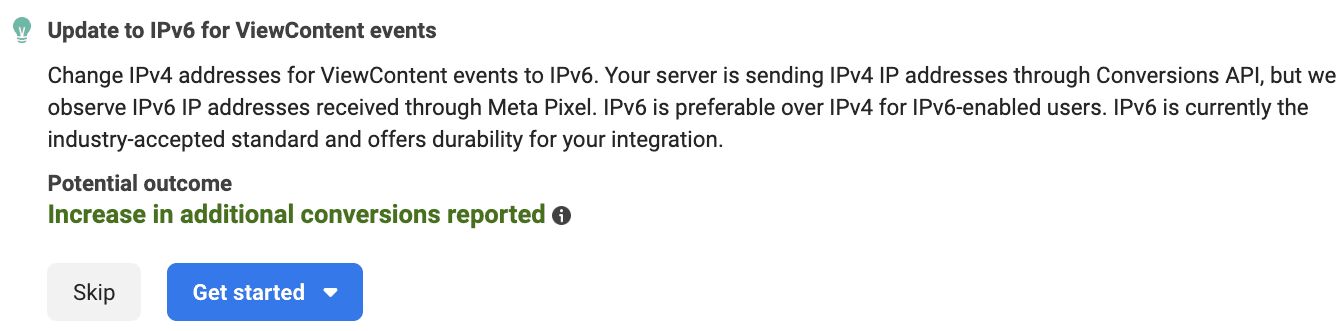
When a user on an IPv6 network fires the Meta pixel on your site, Meta records the event alongside the user’s IPv6 address. Your server-side CAPI tag is then supposed to send the server-side version of that same event, including the client_ip_address field, so that Meta can deduplicate the two and improve match quality.
The problem: if your SGTM load balancer only has an IPv4 frontend, that IPv6 user’s request goes through NAT64 address translation before it ever reaches sGTM. The IP address SGTM reads from the incoming request is a translated IPv4 address. Your CAPI tag dutifully forwards it to Meta, which then compares it against the IPv6 address the pixel recorded. They don’t match. The deduplication is degraded and the match score drops.
The fix is to give your load balancer a dual-stack frontend: one IPv4 address (already in place) and one IPv6 address. When an IPv6 user connects, they reach SGTM natively over IPv6. No translation, no mismatch. The CAPI tag reads the real IPv6 address and sends it to Meta. Events match correctly.
In practice, this is very easy to do. You need to reserve a static external IPv6 address in Google Cloud, attach it as a second frontend on your existing load balancer, and add an AAAA record to your DNS. Cloud Run itself needs no changes: IPv6 termination happens at the load balancer, and the LB continues to forward traffic to Cloud Run over IPv4 internally. You’ll need a certificate map to configure the frontend, but luckily that isn’t too difficult to do.
Read on to learn how to do this!
Table of Contents
The Simmer Newsletter
Subscribe to the Simmer newsletter to get the latest news and content from Simo Ahava into your email inbox!
How IP address matching breaks without IPv6
It’s worth being precise about the mechanism, because the failure is silent and won’t show up as an error anywhere in your setup.
When SGTM receives a request, it reads the client IP address from the incoming connection. The load balancer forwards this via the X-Forwarded-For header. The official Meta CAPI tag template (and most other vendor templates) reads this header and uses the value as the client_ip_address parameter in the outgoing server-to-server request to Meta’s API.
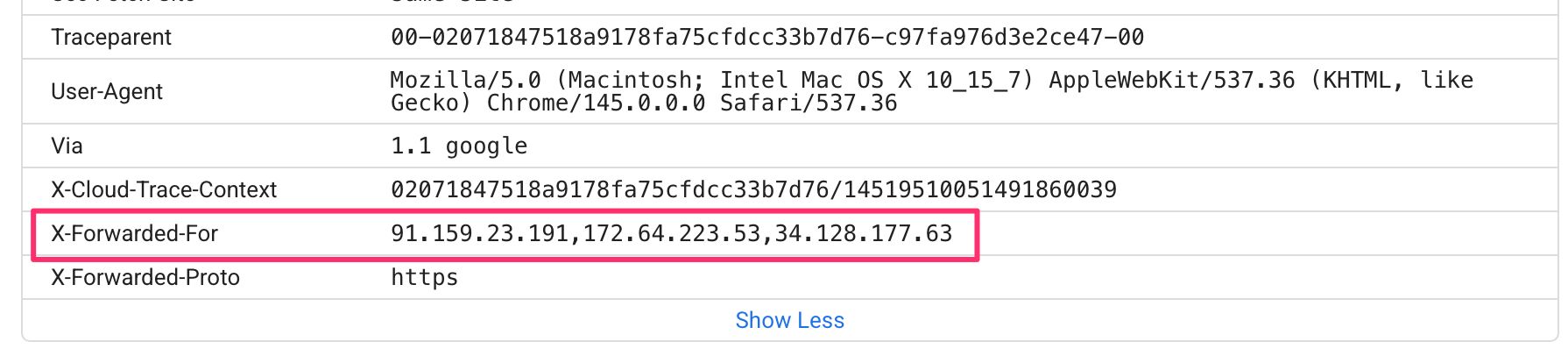
On Meta’s side, incoming pixel events and CAPI events are compared using a set of customer information parameters: IP address, user agent, email hash, and so on. IP address is one of the stronger signals. When both events carry the same IP, Meta can confidently deduplicate them and attribute the conversion to the correct user journey.
Here is what happens step by step when an IPv6 user hits an IPv4-only SGTM endpoint:
- The user’s device is on
2001:db8::1(an IPv6 address). - The client-side Meta pixel fires. Meta logs the event with
client_ip_address: 2001:db8::1. - The browser sends a request to your SGTM endpoint to trigger the CAPI event.
- Your SGTM endpoint has no IPv6 frontend. The user’s device connects via NAT64, which translates the source address to something like
192.0.2.1. - SGTM reads
192.0.2.1from theX-Forwarded-Forheader. - The CAPI tag sends
client_ip_address: 192.0.2.1to Meta. - Meta compares
192.0.2.1against2001:db8::1. No match. Deduplication is incomplete.
With a dual-stack load balancer, step (4) changes: the user connects natively over IPv6, the address reaches SGTM untranslated, and the CAPI tag sends the correct value. Meta matches the events cleanly.
Meta is the most visible example here, but the same logic applies to any vendor tag that uses the client IP as a matching or enrichment signal.
Prerequisites
This guide assumes you already have:
- A working SGTM deployment on Cloud Run (or Cloud Run-compatible infrastructure)
- A Global External Application Load Balancer fronting that deployment, with an HTTPS frontend and a valid SSL certificate
- Access to your DNS provider to add records
- The Owner or Network Admin role in your Google Cloud project
If you’re still setting up your SGTM infrastructure, this guide covers the baseline Cloud Run deployment. The load balancer configuration described here assumes the standard setup that follows from that guide. I also cover the Cloud Run setup extensively in Simmer’s Server-side Tagging In Google Tag Manager online course.
Step 1: Reserve a static external IPv6 address
In the Google Cloud Console, navigate to VPC Network > IP addresses and click Reserve External.
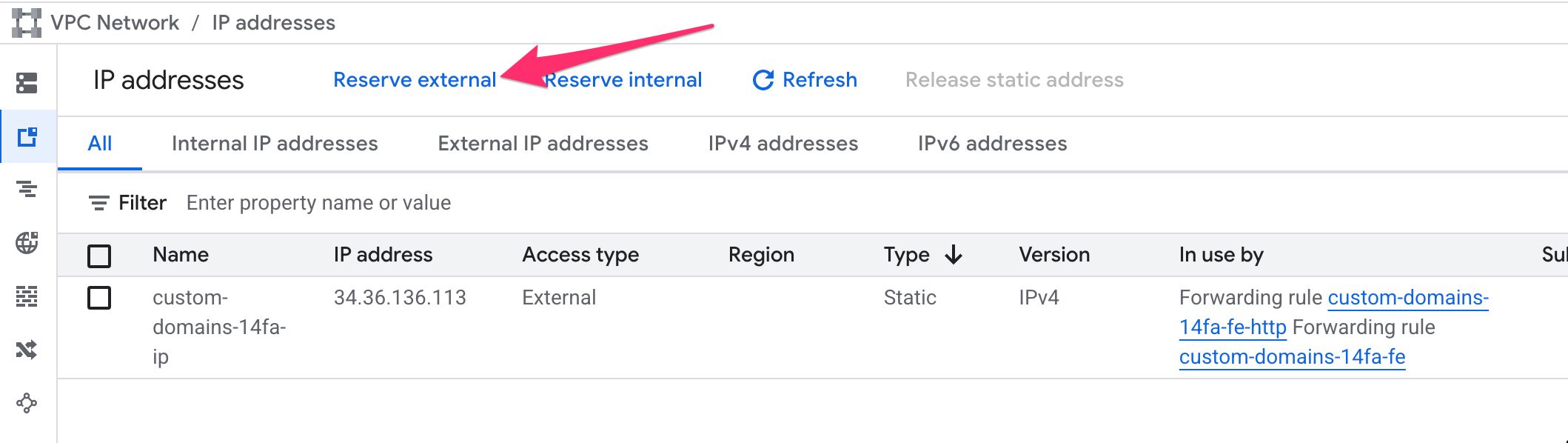
Configure the new address as follows:
- Name: something descriptive, e.g.
sgtm-ipv6 - Network Service Tier: Premium (required for global load balancers)
- IP version: IPv6
- Type: Global
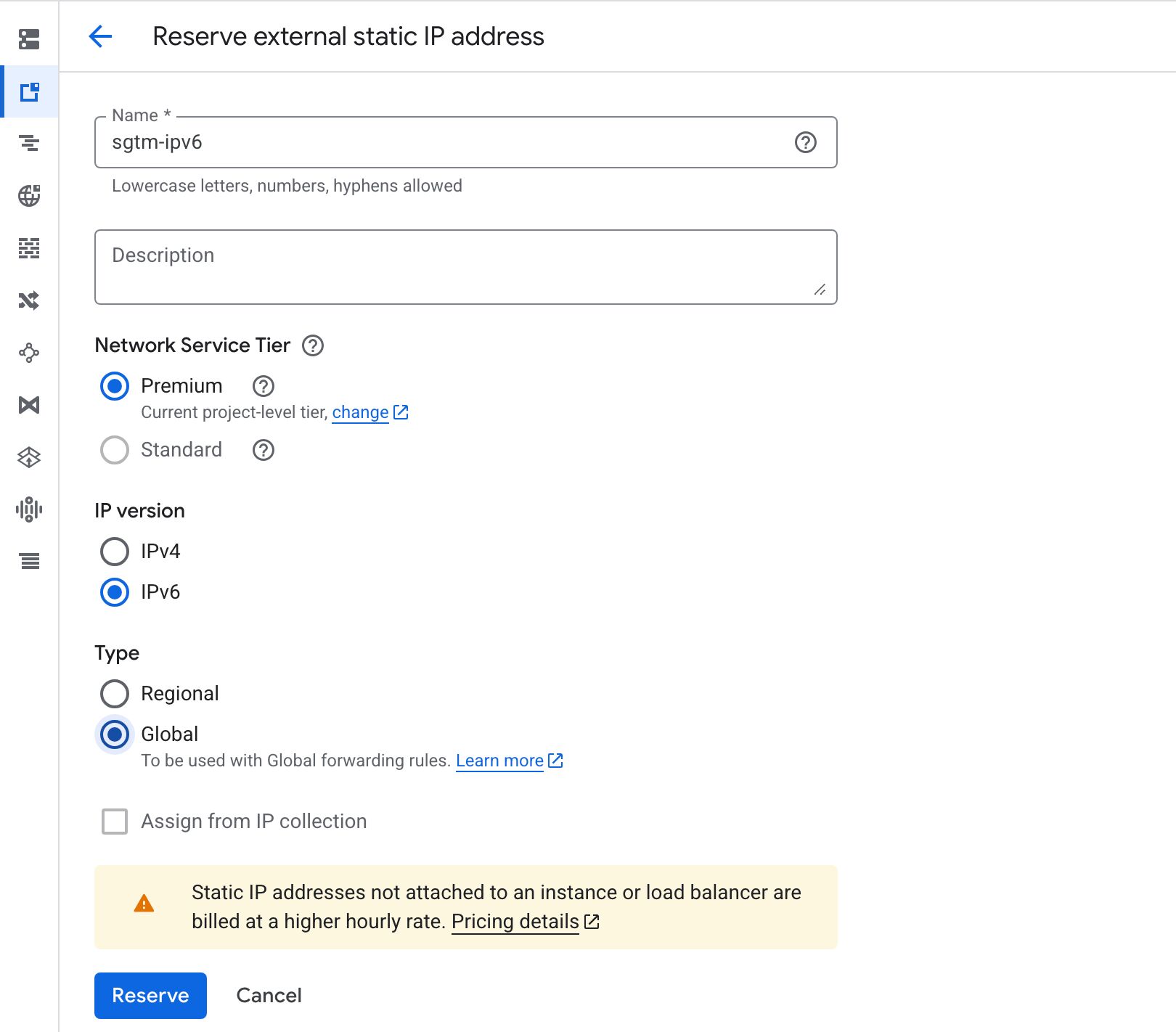
Click Reserve. Google will allocate a /96 IPv6 prefix and surface the first usable address. You’ll see it listed in the IP addresses table. It will look something like 2600:1901:0:xxxx::.
Copy that address. You’ll need it for both the DNS record and the load balancer frontend configuration.
Step 2: Add an AAAA record to your DNS
Before wiring up the load balancer, add the DNS record so that propagation can start in the background while you finish the configuration.
In your DNS provider, add a new record for your sGTM subdomain (e.g. sst.yourdomain.com):
- Type:
AAAA - Name:
sst(or whatever subdomain you’re using) - Value: the IPv6 address you reserved in Step 1
- TTL: your standard TTL (300 seconds is fine)
The screenshot below is what my dual-stack configuration looks like in my DNS settings.

Keep the existing
Arecord in place. The goal is dual-stack. Both IPv4 and IPv6 clients should be able to reach your endpoint. Removing theArecord would break IPv4-only clients.
Step 3: Create a certificate map
Note! You’ll need the gcloud command-line tool to proceed, as certificate map creation is not yet available through the Google Cloud Platform console. Click here for installation instructions, and click here for the initialization guide. Make sure you’ve set your project ID, so that the gcloud commands are executed in the correct context!
Google Cloud has migrated to certificate maps in Load Balancer frontend configurations. While you can still link a single frontend directly to a certificate, as soon as you want to add multiple frontends, you need to use a certificate map. It’s also possible that at some point in the near future, you’ll need a certificate map for your single SSL frontend, too.
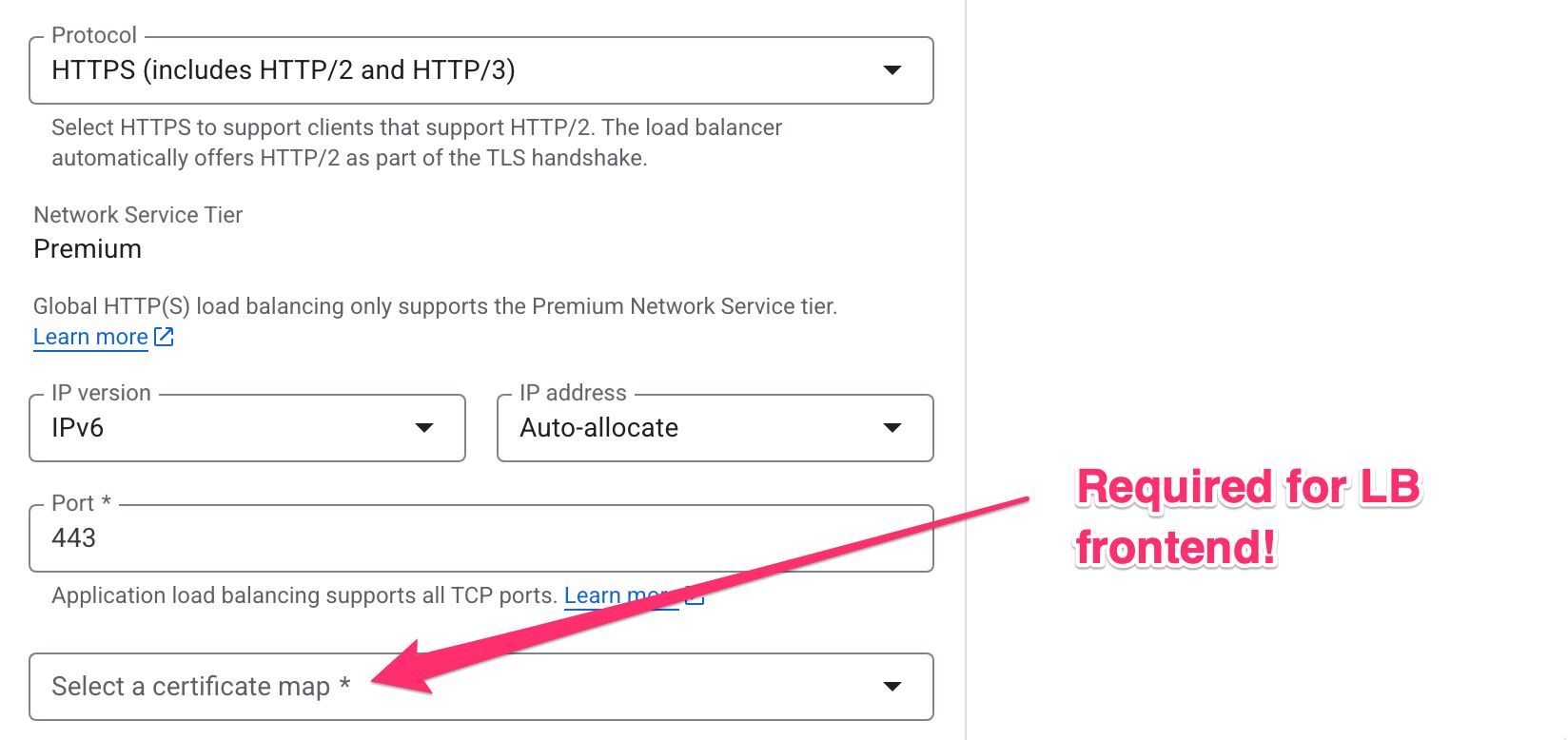
Unfortunately, certificate maps won’t work with the “classic” Google-managed SSL certificate you’re probably using in your load balancer. Instead, you need to go to Certificate Manager, and create a new certificate.
Follow this link to jump straight to this process in your Google Cloud project.
Here, give the certificate name (e.g. sgtm-ssl-cert), choose Create Google-managed certificate as the type, add the domain name(s) you want the certificate to cover, and leave everything else as default and click Create.
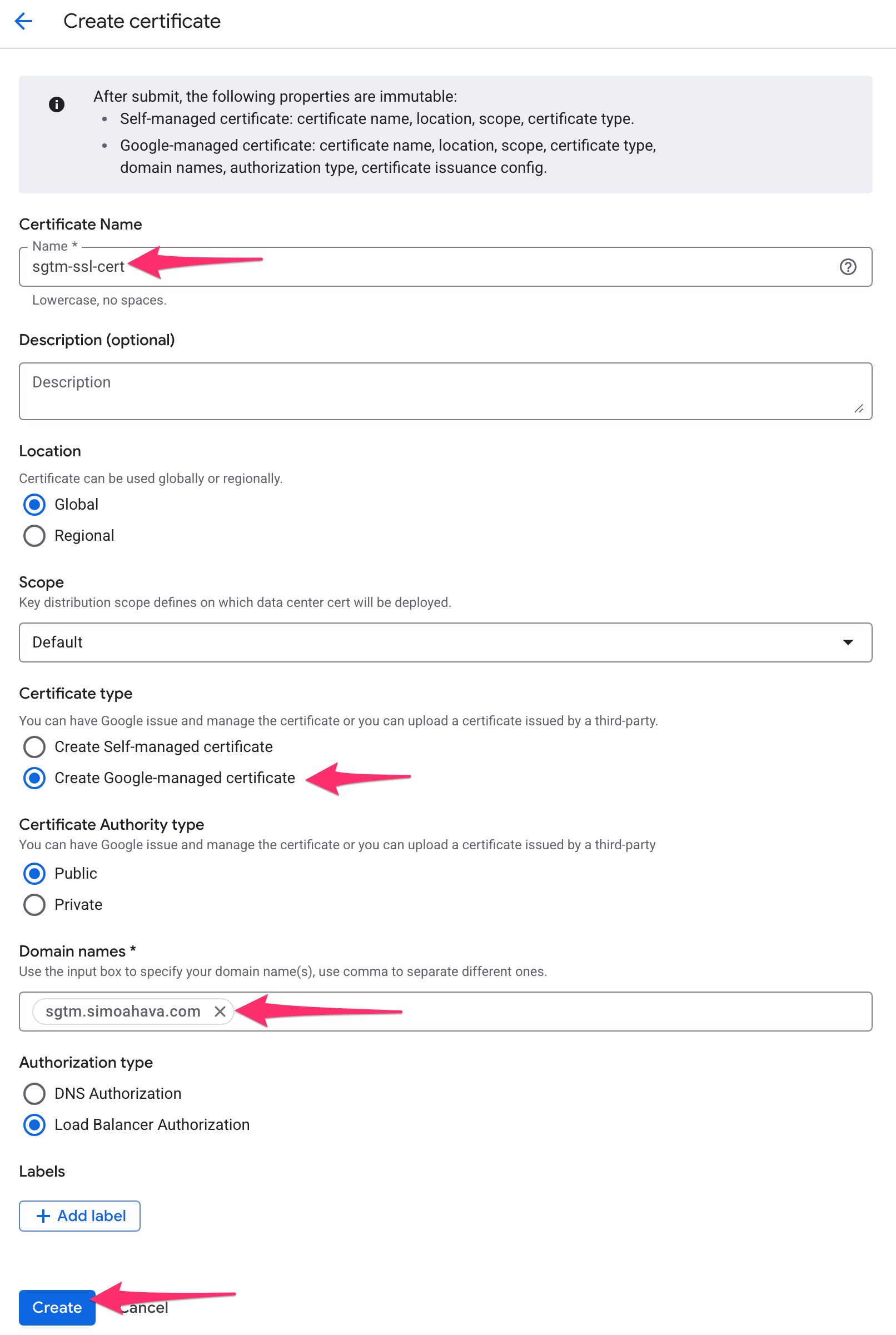
Once you’ve created the certificate, you need to move to the command line (in your terminal application) and run the following commands.
First, create the certificate map with this:
gcloud certificate-manager maps create <map-name>I chose sgtm-cert-map as the name, so the command and successful response look like this:

Next, you need to create a certificate map entry that links your new certificate and its associated hostnames to the certificate map. Here’s the command:
gcloud certificate-manager maps entries create <entry-name> --map=<map-name> --hostname=<sgtm-hostname> --certificates=<certificate-name>Replace
entry-namewith a custom name for the certificate entry. Replacemap-namewith the name of the map you just created. Replace<sgtm-hostname>with the hostname the certificate should cover. Replacecertificate-namewith the name of the SSL certificate you created in the beginning of this step.
Since I only have a single hostname to map to, I only need a single entry. If you have multiple hostnames associated with the certificate(s), you’d need to create one entry per hostname. Here’s what my command output looked like:

Once ready, you can head over to the GCP console’s Certificate Maps page to verify your map has been created.

Now, you’ll want to wait for your new SSL certificate and certificate map to signal green for completion before proceeding. This should only take a short while. Click the certificate map name in the console, and wait for the SSL certificate(s) under Associated certificates to have the green cherkmark which signals that it has been successfully provisioned.

Step 4: Add an IPv6 frontend to the load balancer
Next, navigate to Network Services > Load balancing in the Cloud Console and click your existing load balancer.
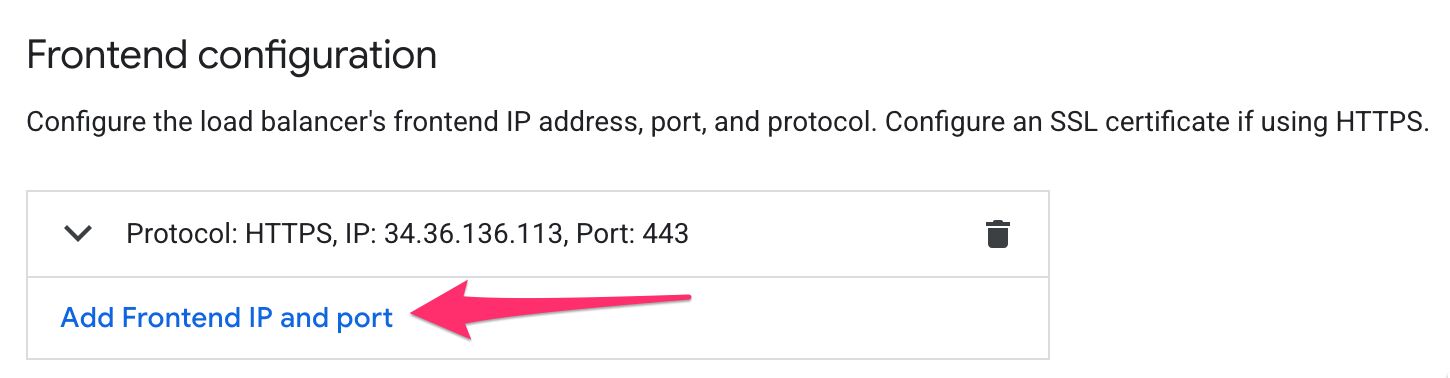
As you can see below, this load balancer has just a single HTTPS frontend, which only handles IPv4 traffic.
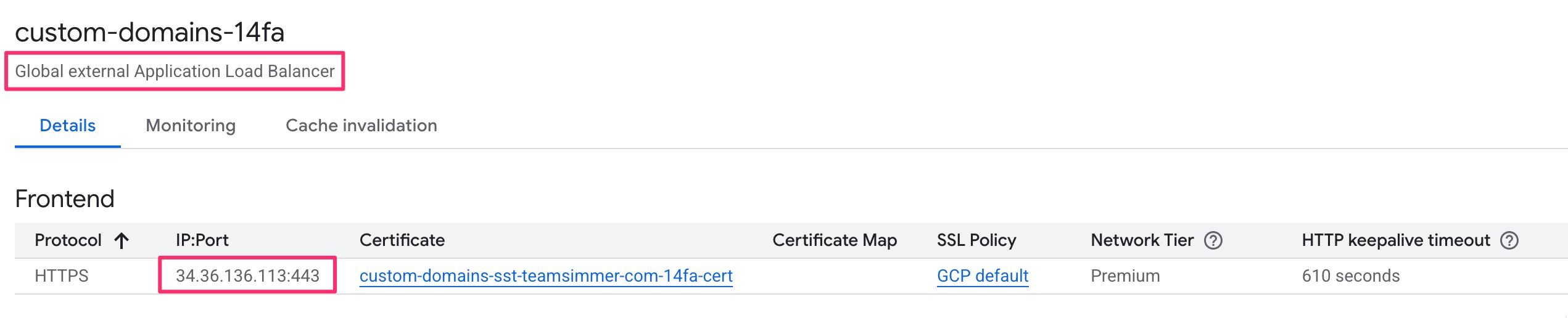
Click Edit, then go to the Frontend configuration section and click Add Frontend IP and port.
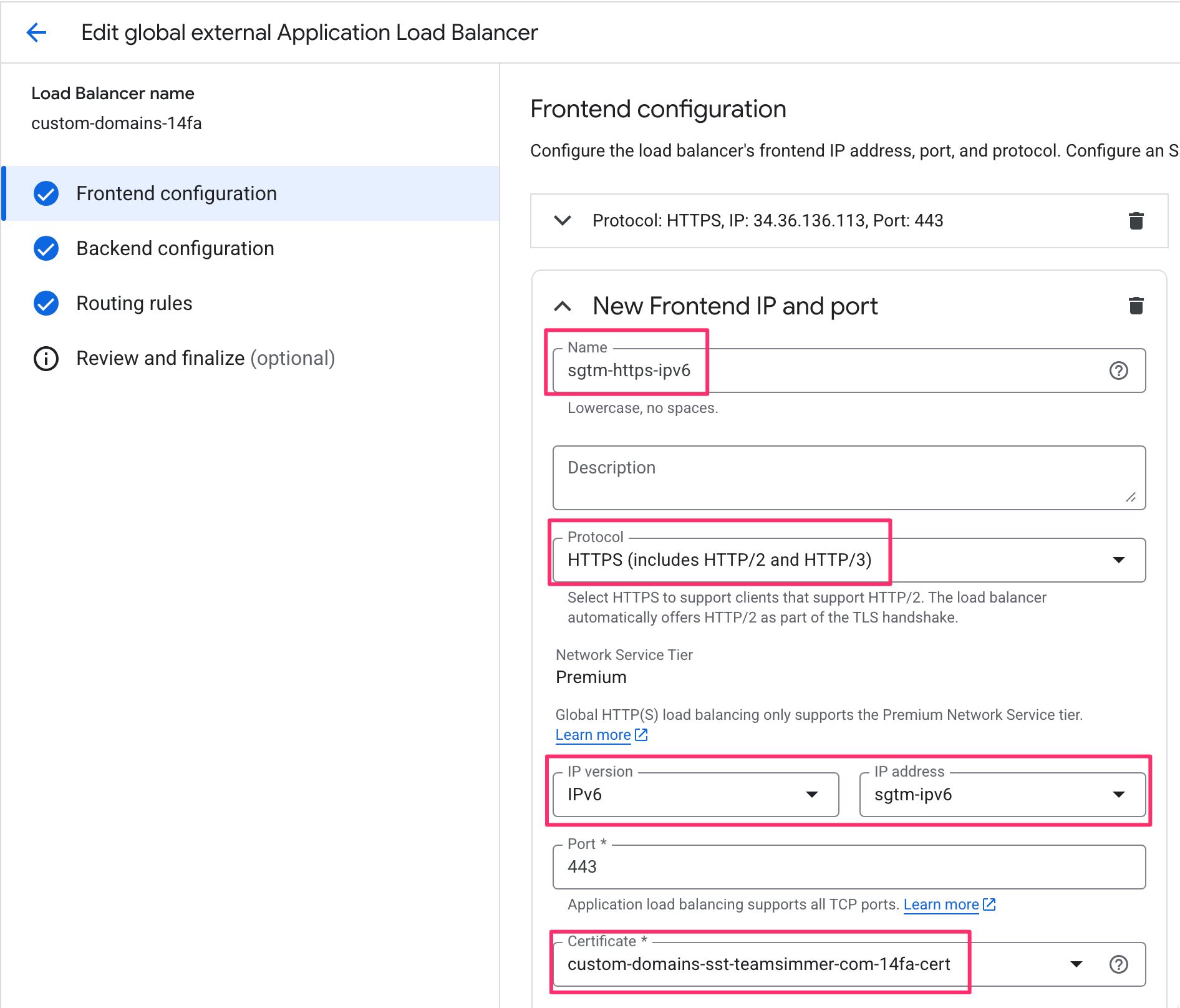
Configure the new frontend:
- Name: e.g.
sgtm-https-ipv6 - Protocol: HTTPS
- Network Service Tier: Premium
- IP version: IPv6
- IP address: select the
sgtm-ipv6address you reserved in Step 1 - Port: 443
- Select a certificate map: select the certificate map you created in the previous step
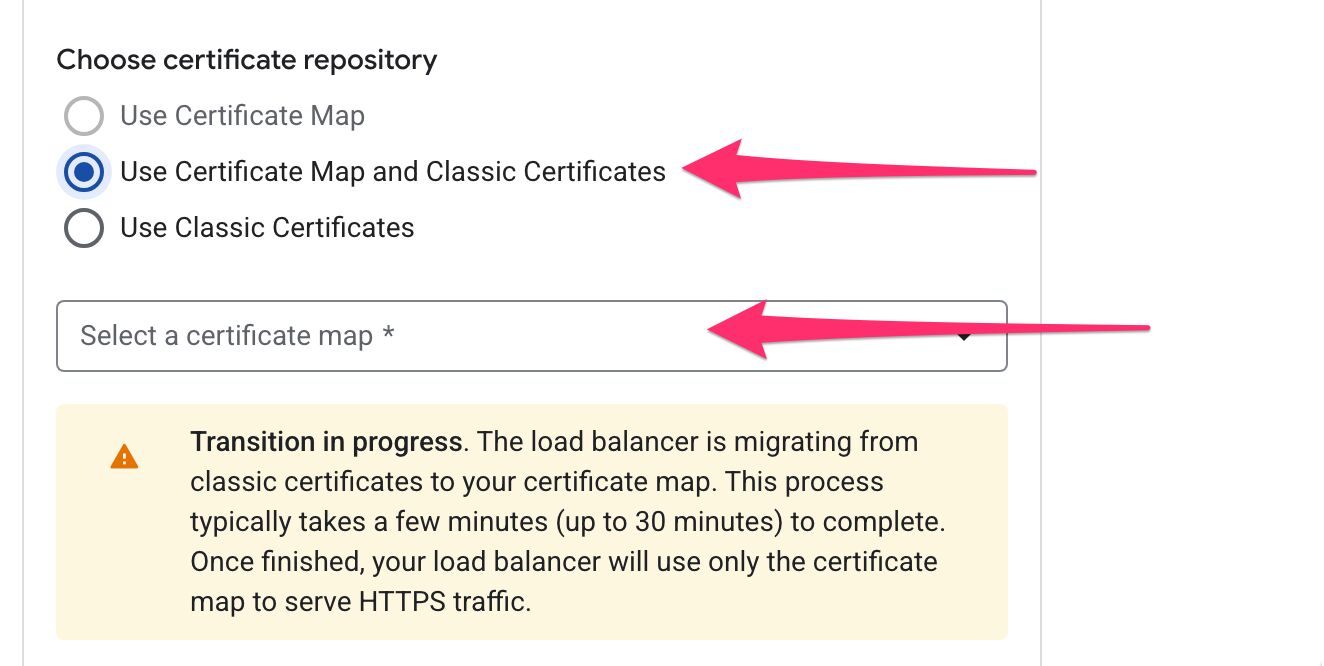
While you’re at it, you might also want to edit your existing IPv4 frontend to use the certificate map, too. To support a seamless migration, it won’t let you jump directly to the certificate map. Instead, you need to choose the “Use Certificate Map and Classic Certificates” option, and then choose the map from the list. This ensures that the frontend uses the pre-existing classic certificate for as long as it takes for the certificate map to be ready.
You do not need to create a new backend service or routing rule. The new IPv6 frontend shares the same backend and URL map as your IPv4 frontend. Traffic coming in over IPv6 is handled identically once it hits the load balancer.
Click Done, then Update to save the load balancer configuration.
Step 5: Verify the setup
Give DNS a few minutes to propagate, then verify both stacks are working.
Check DNS resolution
From a terminal, confirm that both record types resolve correctly:
# Should return your IPv4 address
dig A sst.yourdomain.com +short

# Should return your IPv6 address
dig AAAA sst.yourdomain.com +short
Test IPv6 connectivity
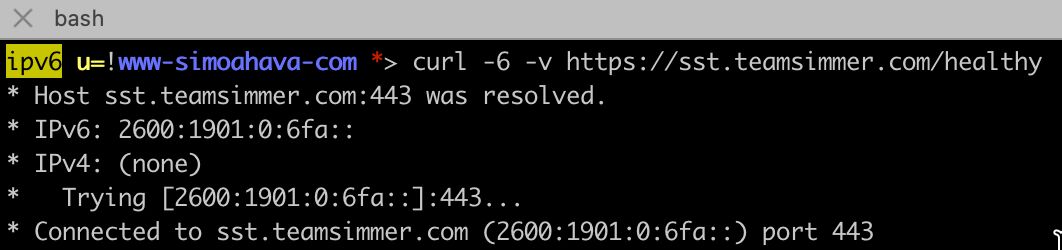
If your local machine has an IPv6 address, curl can force an IPv6 connection:
curl -6 -v https://sst.yourdomain.com/healthyYou should get an ok response (or whatever your sGTM container returns for health checks). The -v flag will show the connection details. Confirm the remote address is an IPv6 address.
If you don’t have native IPv6 at home, test-ipv6.com can give you a sense of your current stack, and tools like test-ipv6.run/domain-checker can do a quick DNS and connectivity check against a domain.
Verify in the Cloud Console
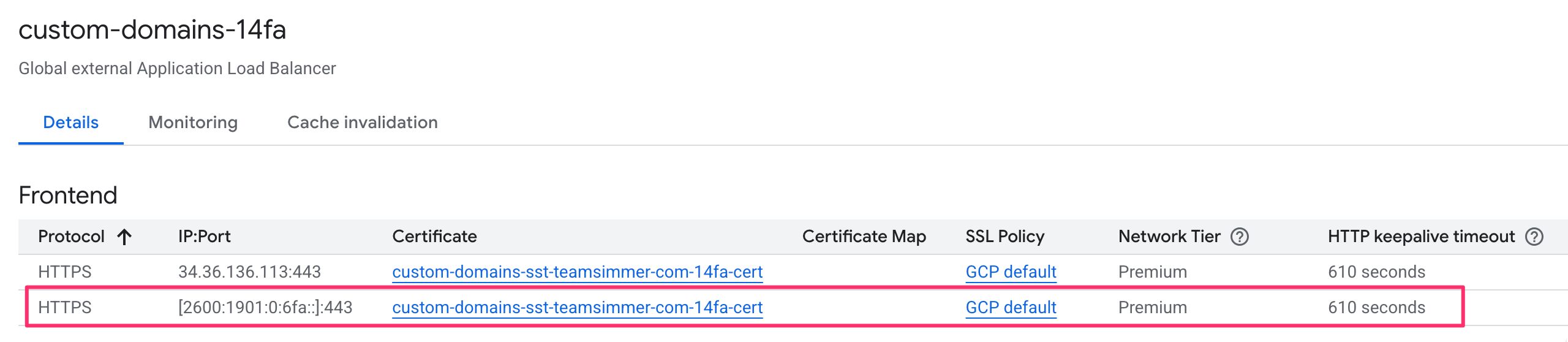
Back in the load balancer detail page, both frontends (IPv4 and IPv6) should now appear under Frontend, each with their respective IP address.
Update the certificate configuration
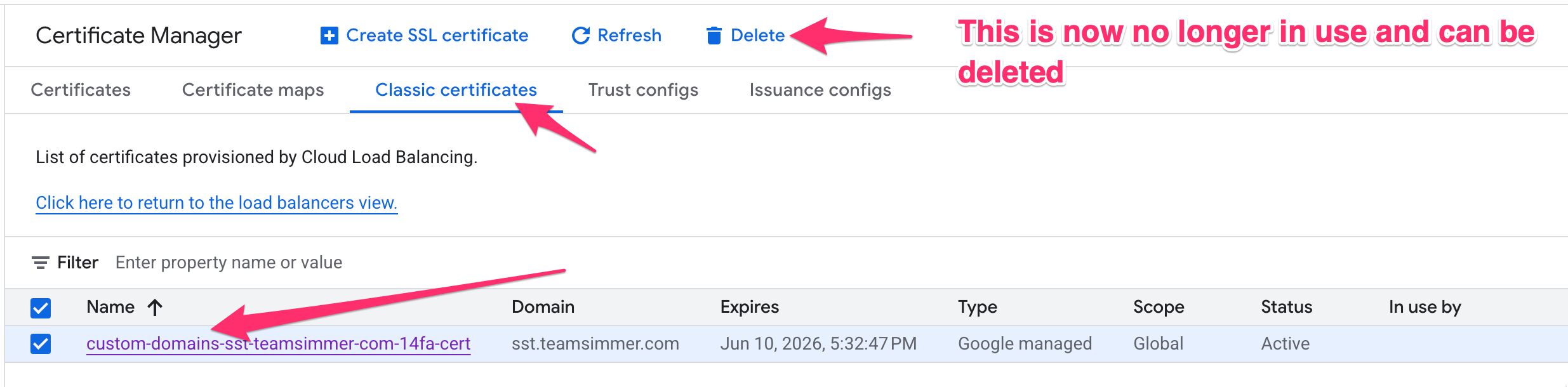
Once you’ve verified everything works, you can edit your Load Balancer frontend again, and switch to Certificate Map only for the IPv4 frontend, too. This will release the classic SSL certificate you used to have, and you can delete it in the Certificate Manager as it’s no longer needed.
Summary
Adding IPv6 to a Cloud Run sGTM deployment is largely a load balancer exercise. Cloud Run itself stays untouched. The key steps are:
- Reserve a global static external IPv6 address in GCP
- Add an
AAAArecord to your DNS (keep theArecord) - Create a new Google-managed SSL certificate and add it to a new certificate map
- Add an IPv6 HTTPS frontend to the existing load balancer, pointing at the same backend and the new certificate map
- Verify with
digandcurl -6 - Update the IPv4 HTTPS frontend to use the certificate map, too, and delete the now unused classic SSL certificate
While working with the certificate map is a bit of a hassle (hopefully it will be fully UI-managed soon!), the payoff is concrete: IPv6 users reach your SGTM endpoint without address translation, so the client_ip_address your Meta tags collect (and other vendors!) matches what the client-side tags recorded. Better IP matching means better event deduplication and more reliable attribution.
Let me know in the comments if you run into anything unexpected!