In preparation for the upcoming major integration between Google Tag and Google Tag Manager, Google has rolled out some user interface changes to your GTM containers.
The changes simplify the UI quite a bit, with the biggest changes landing on the Overview dashboard and the navigation.
In this article, I’ll take a look at the changes and I’ll also show what the new event editor / event builder for Google Ads Purchase conversions looks like.
XThe Simmer Newsletter
Subscribe to the Simmer newsletter to get the latest news and content from Simo Ahava into your email inbox!
The new Overview dashboard
I have to say, I rarely (if ever) visit the Overview dashboard. It’s borderline useful to quickly scan workspace changes, but I’ve always been so annoyed by the huge blocks of unnecessary visual clutter that dominate the top half of the page.
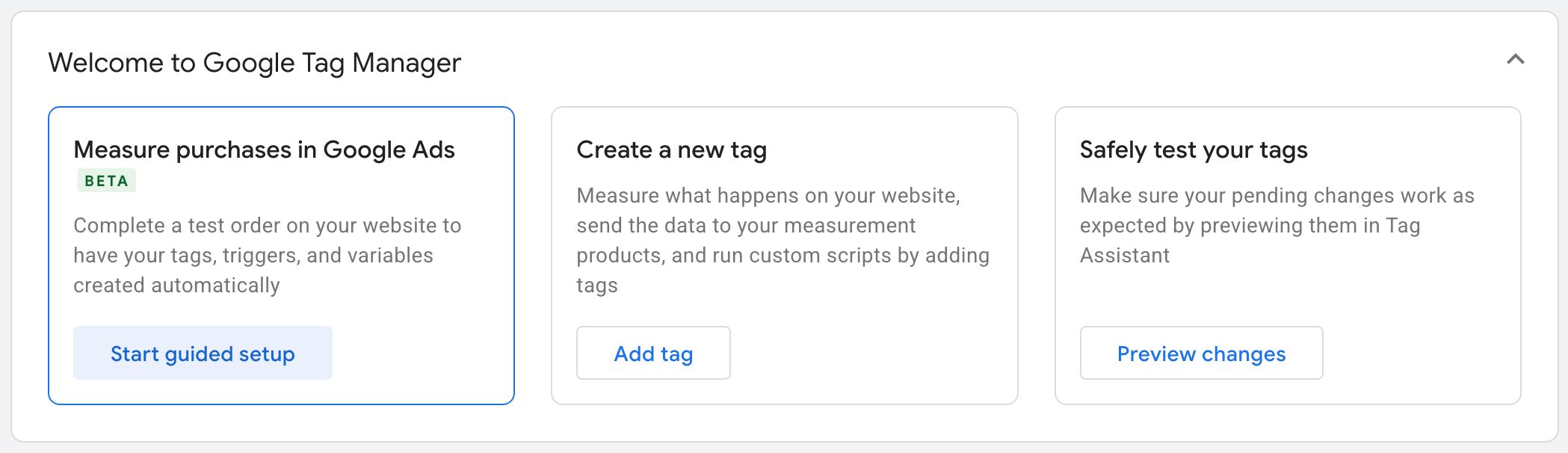
With the new UI, there’s still visual clutter in the top, but it can now be collapsed. The Welcome to Google Tag Manager card is designed to help GTM newcomers get started quickly, but advanced users will want to hide that card post haste.
Beneath the welcome card is where the major changes have taken place. The information that used to cover the entire dashboard has now been condensed into this single table.
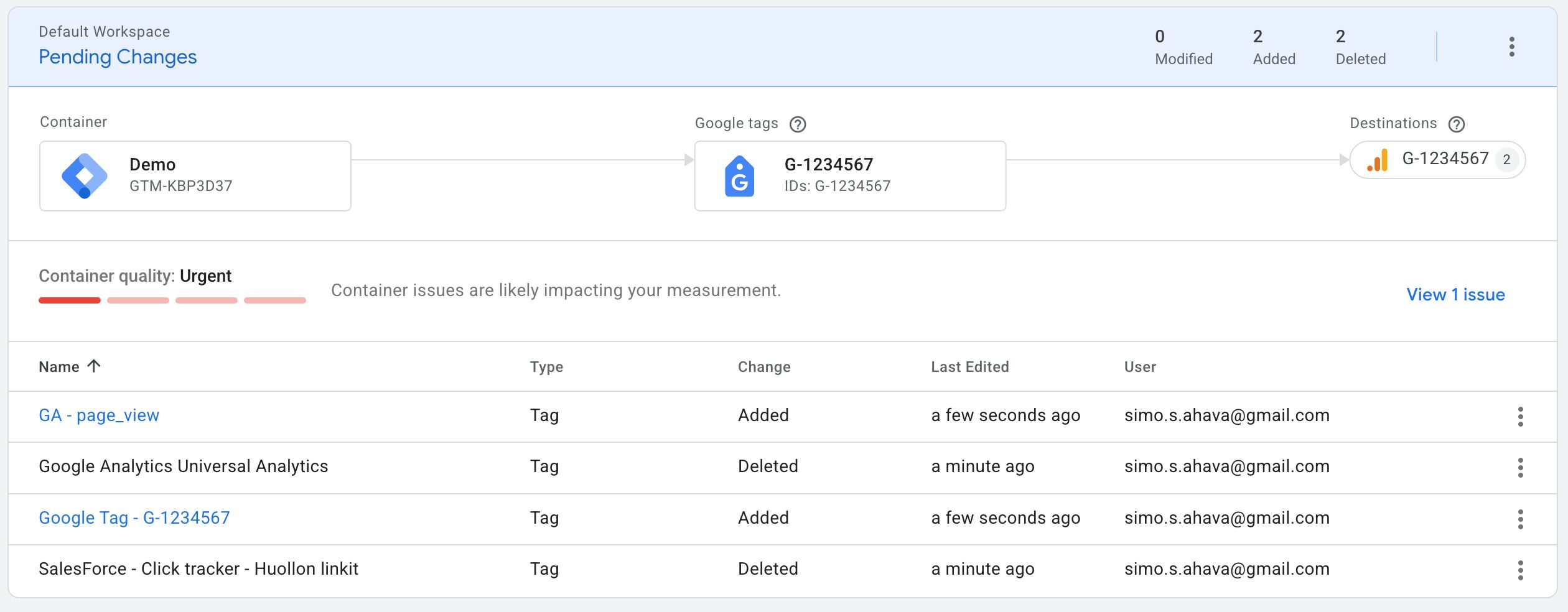
At the top, you have a quick look at modified, added, and deleted entities in the current workspace. The overflow menu (the one with three vertical dots) lets you edit and manage workspaces as well as jump to the container activity history.
The next item in the card is the visualization of Google Tags and their destinations currently in the container. This becomes much more relevant once the Google Tag / GTM integration rolls out, but right now it gives you a nice look at what your Google Tag setup looks like.
Then we have the Container Diagnostics overview which unfortunately still can’t be dismissed.
Finally, it’s the list of changes in the container, and you can sort the list by clicking each column name. As before, individual changes can be Abandoned (undone) or Viewed by clicking the overflow menu at the end of each row.
I’m a big fan of simplification and this change checks all the boxes. I’m still not 100% certain this dashboard is useful to me on a daily basis, but at least now I don’t have to shield my eyes from the visual clutter before getting to the good stuff (the list of changes in the current workspace).
The collapsible navigation
This is bound to tickle some feathers. Google has made the left navigation collapsible, with “advanced” features in new containers hidden behind a Show more toggle.
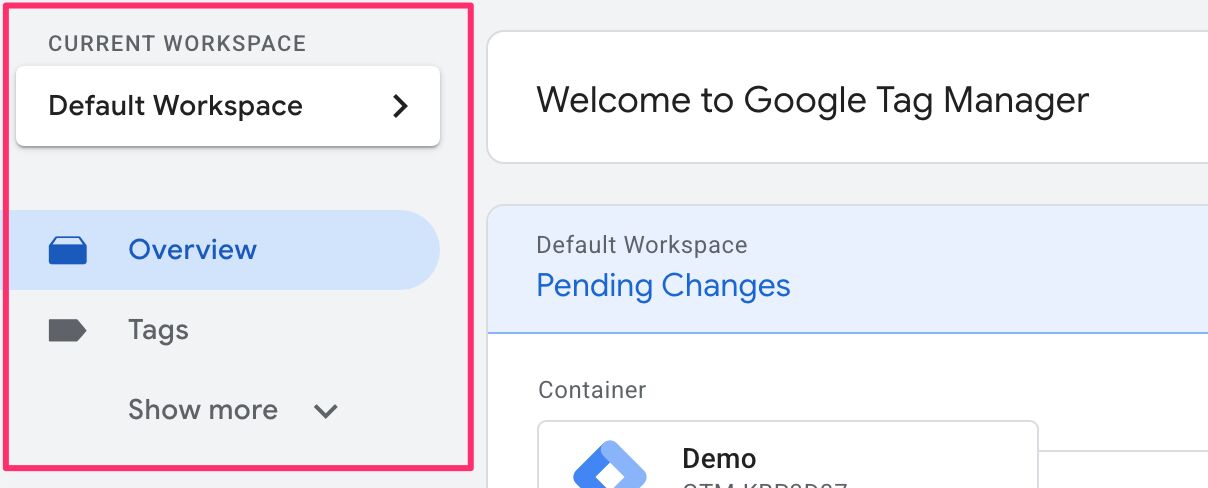
So what are “advanced” features? Well, everything but the Overview and Tags, apparently.
Once the Google Tag / GTM integration rolls out, the new Google Tag Settings link will also be shown in this default set of GTM features.
This is clearly aimed at GTM newcomers, most likely in preparation for the masses that will soon have their Google Tags converted to full GTM containers.
You’ve already been able to create full tag flows without ever visiting the Triggers and Variables pages, so hiding them under a collapsed navigation might make sense.
Regardless, your choice persists, so if you choose to Show more, that’s what you’ll see until you click Show less to collapse the navigation again.
The event editor
There are other UI changes, such as a reworked Account list, but these are things that don’t really affect how you work on the container on a daily basis.
However, one pretty neat feature that’s making its way to GTM containers is the new event editor (or “visual event builder”, I’m not really sure what it’s called).
It lets you configure events using a visual editor, where you click to select the relevant elements on the page while scrolling through your actual website. These are then converted to triggers and variables using CSS selectors.
You start it by clicking the Start guided setup button in the Welcome card on the Overview dashboard (under Measure purchases in Google Ads).
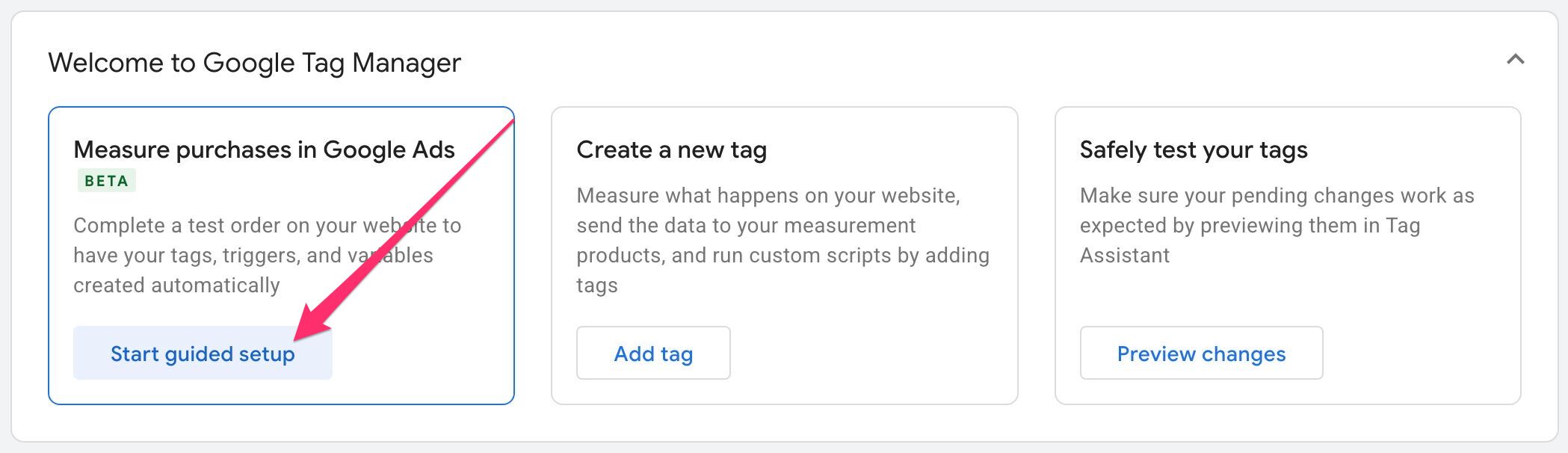
As the heading indicates, right now this will only work for Google Ads purchase conversions, but I expect it will at some point extend to other events and destinations, too.
The editor starts by asking you some basic questions about the conversion:
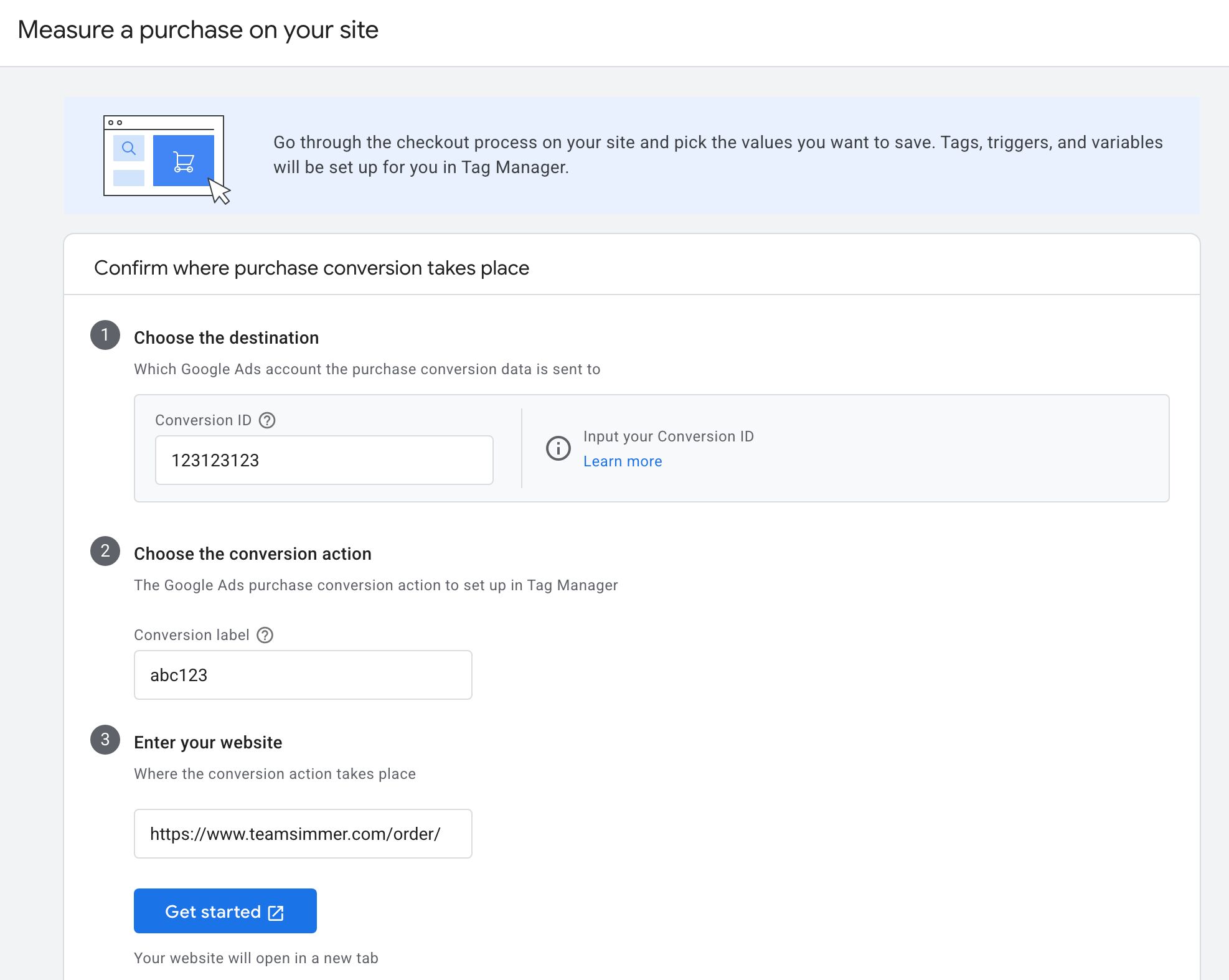
Once you fill these and click Get started, a new tab opens to your website with the event builder overlay. This is a classic WYSIWYG (what you see is what you get) editor in the style of many A/B testing tools.
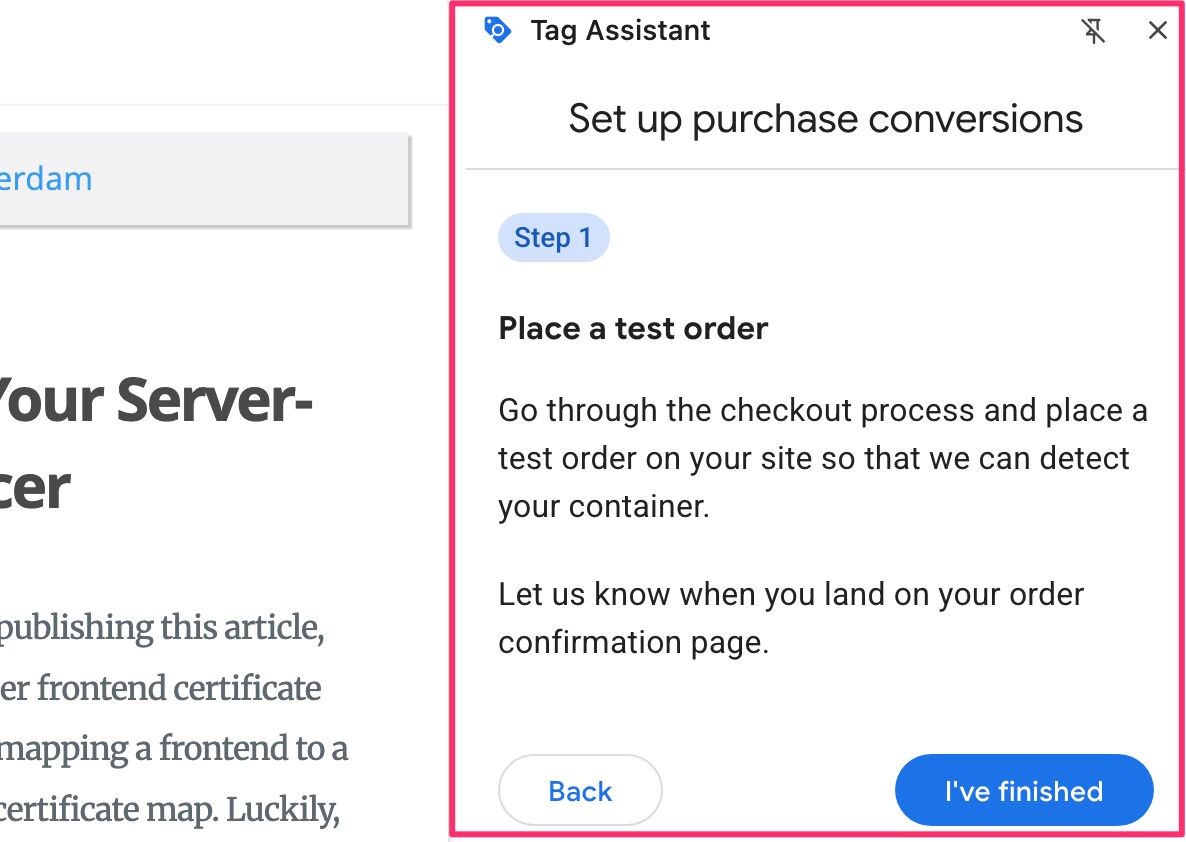
The first thing the event builder wants you to do is complete a purchase conversion. This is so that you land on the receipt page where you can then indicate which on-page elements contain the relevant information.
Note! You need to have Edit access to the GTM container that’s running on the conversion page. If you don’t, the event builder will not be able to create the GTM resources for you.
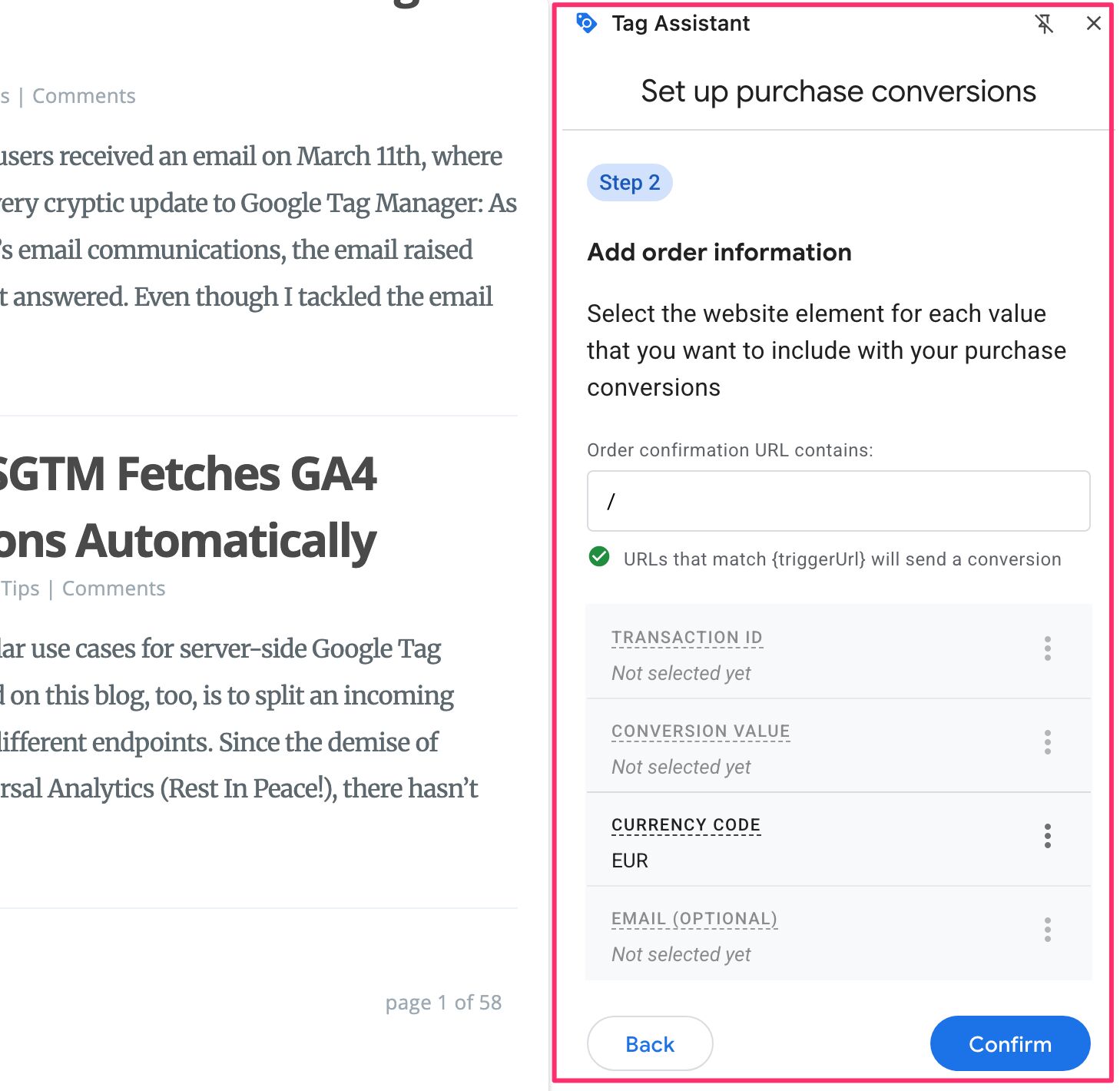
Once on the conversion page, you need to click and select the transaction ID, conversion value, currency code and (optionally) the user’s email address from the page.
You do this by first selecting the item in the editor overlay and then quite literally clicking the value on the page.
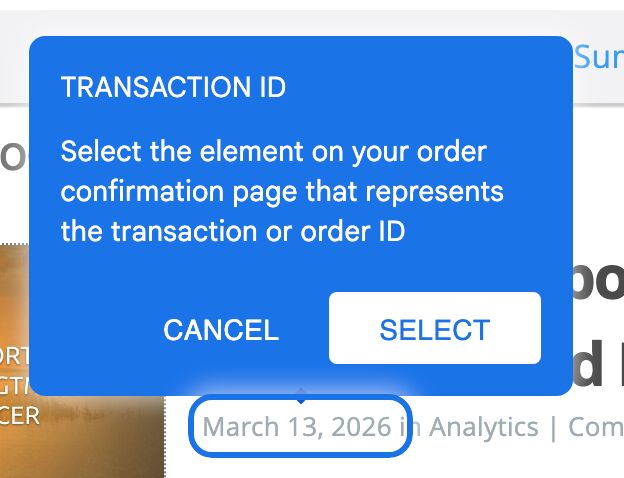
If you choose invalid items, for example a text element for the conversion value, the builder will warn you about the value mismatch.
Once you’ve selected the items, you can click to publish the changes in Google Tag Manager.
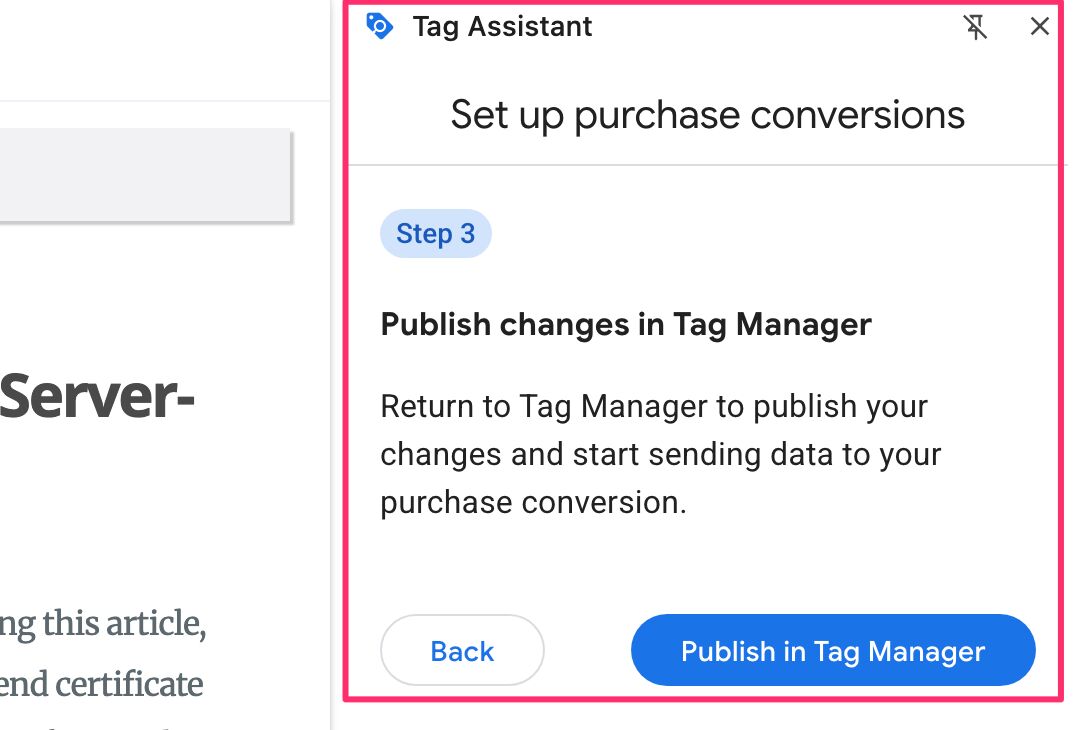
I’m struggling a bit to figure out who the target audience for the event builder is. I totally understand its utility, but relying on CSS selectors for something as critical as purchase conversions sounds a bit scary to me.
While the event builder user interface is slick, and newcomers to GTM will certainly appreciate the ease of building the conversion, I’m worried that dynamic receipt pages and ever-changing CSS layouts will break these conversions before long.
Feel free to use the event builder for your conversion events, but please consider working with the site developers to build conversions into the Data Layer instead of relying on CSS selectors and scraping the page for these values!
Having said that, I’m really looking forward to how the event builder evolves and how it extends to other GTM tags, triggers, and variables, too!
Summary
These UI changes are foreshadowing a much, much bigger change that’s making its way to GTM.
I really appreciate the simplified UI, and I’m also just very happy that GTM is getting attention again, as over the last few years everything has been Google Tag this and Google Tag that.
I’m on the fence with the visual event builder. I can see its utility, but the idea of scraping the page for business-critical data goes against everything I believe in when it comes to tagging a website.
What do you think about the changes? Let me know in the comments!