There’s a somewhat understated feature in the Google Tag Manager Community Template Gallery, which should certainly prove useful, especially to template authors.
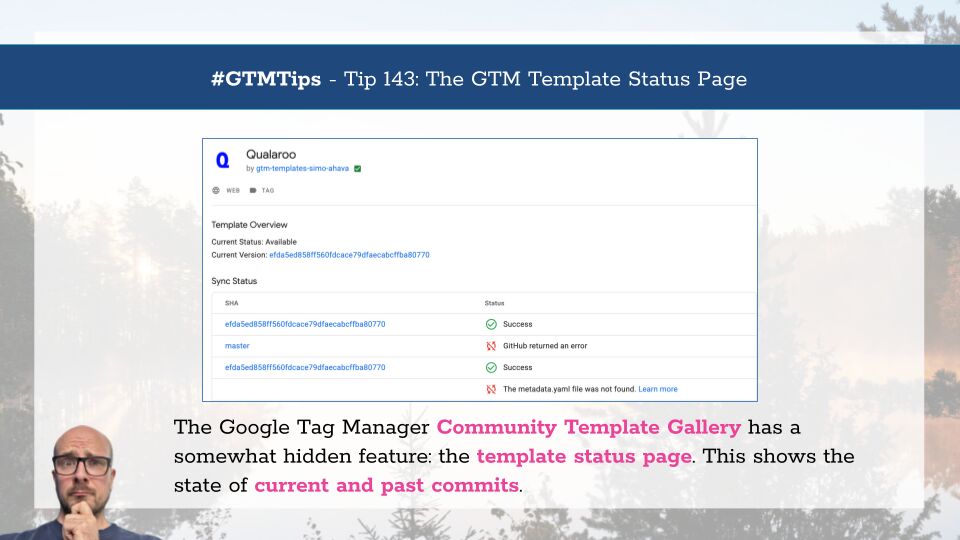
The template status page shows a list of all the GitHub commits handled by the gallery importer, along with any associated errors that the template author should check, especially if there are noticeable problems with integrating the latest changes to the template in the gallery entry.
The Simmer Newsletter
Follow this link to subscribe to the Simmer Newsletter! Stay up-to-date with the latest content from Simo Ahava and the Simmer online course platform.
Tip 143: The status page
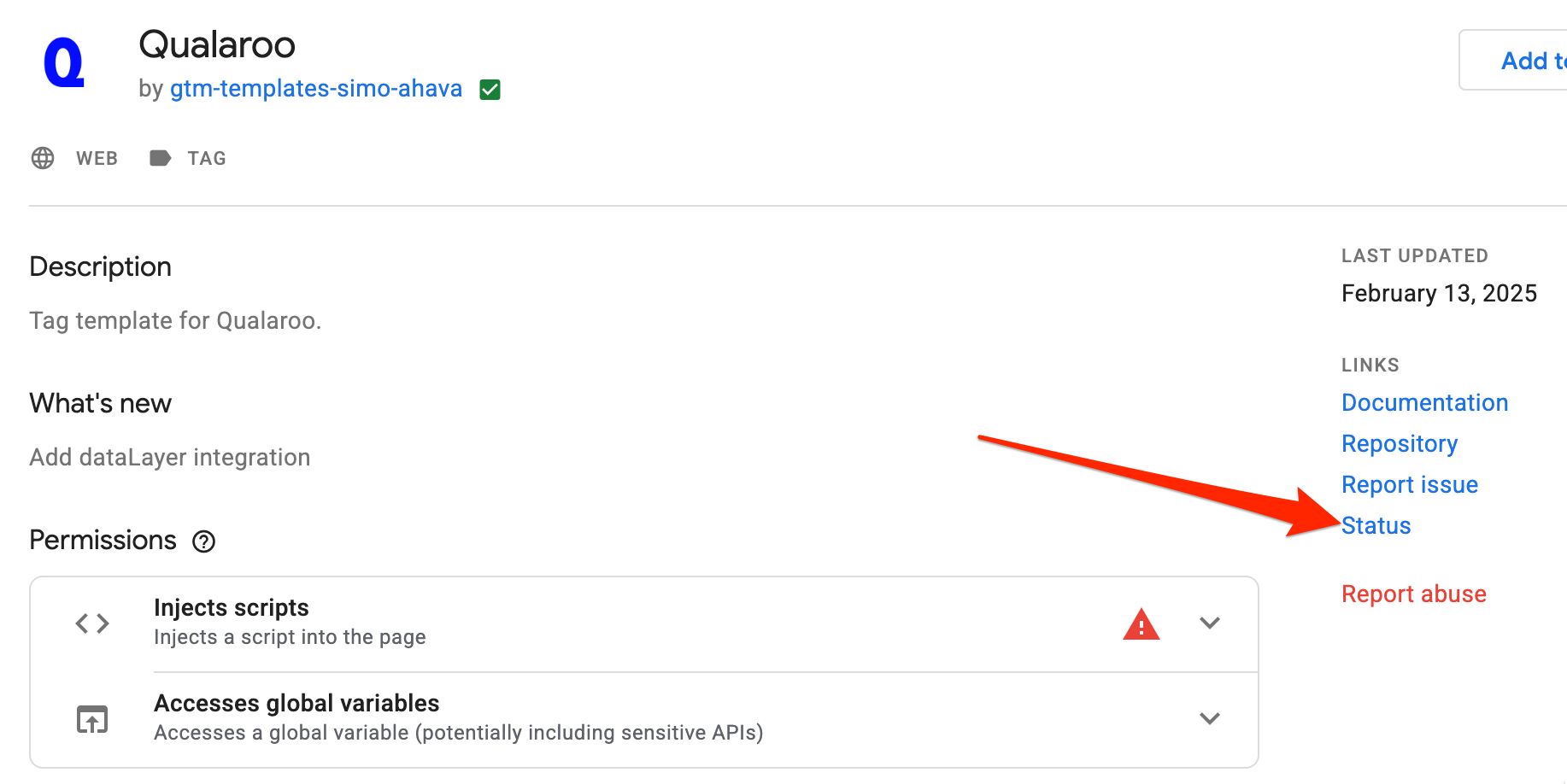
The easiest way to find the status page for any given template is to open the gallery (either via a GTM container’s Templates section or by browsing directly to the gallery), open the template you want to inspect, and then click the Status link in the sidebar:
On the status page, you’ll find whether the template status is currently Available or not, what its current version is (GitHub commit hash), and then a commit hash history of all the versions handled by the importer along with a “Status” for each of the associated commit hashes. Each hash is also a link directly to the commit details in GitHub.
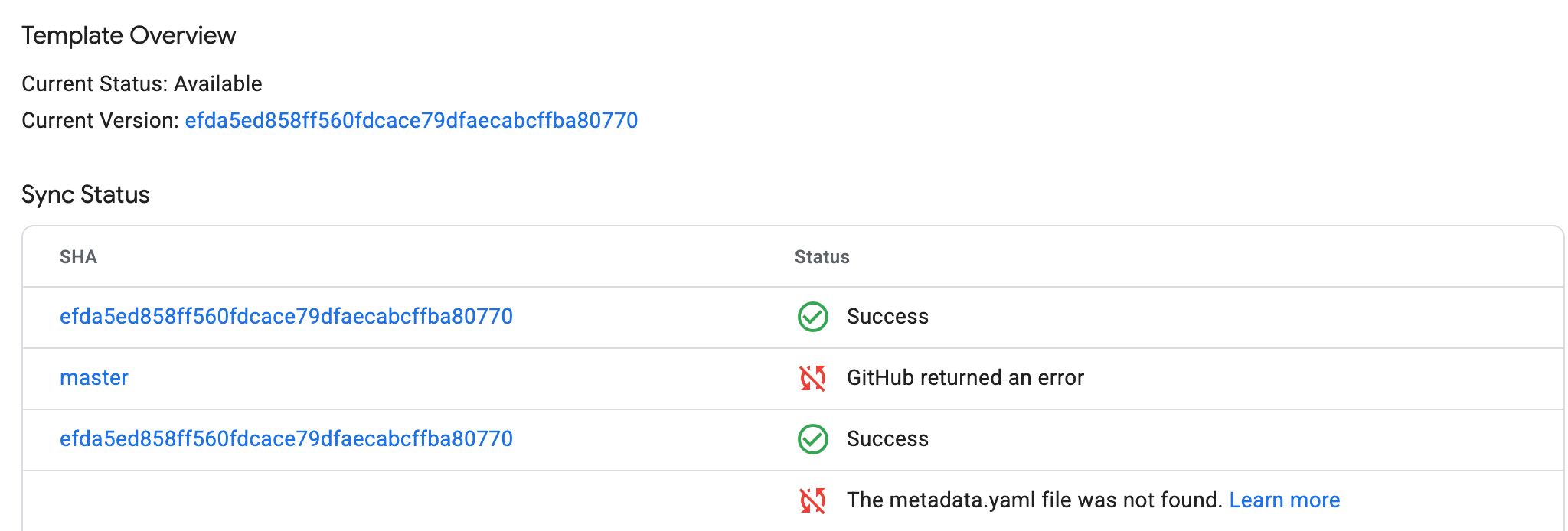
The Success status is self-explanatory. Here are the error messages that might show up:
- There was a problem with the container contexts in the TPL file
- Failed to sync
- GitHub returned an error
- Failed to update template because the license is invalid
- Failed to update template because the Terms of Service section is missing
- Could not find a template, license, or metadata file in the repository
- Could not find the SHA for the most recent version
- The LICENSE file was not found
- Failed to read part of the metadata.yaml file. Please check your yaml formatting, a yaml linter or validator can help you with this
- The metadata.yaml file was not found
- The template/owner has not been synced yet
- No valid versions available
- Failed to parse the TPL content please re-export from the template editor
- Could not find the repository (404 response from GitHub)
- Could not find any template.tpl file in the repository
- The template.tpl file could not be found for the specified version
- The LICENSE file was not found
- This template contains malware
- The GitHub repository for this template has been moved
Many of these are self-explanatory, but based on some exploration, the errors don’t always make sense in the context in which they’re given (e.g., throwing a “The metadata.yaml file was not found” error when the linked commit hash does have it). It would be great to have proper documentation about what these errors mean.
In any case, the status page should prove useful for template authors, especially if there are problems with a template update not showing up or the template disappearing from the gallery altogether. The status page should tell you what was wrong with the commit that broke the integration.
One thing to note, however, is that the status page doesn’t seem to be created until a valid template upload is completed. So if you try to submit a template that doesn’t validate in Google’s internal checks, a status page will not be generated. It’s thus not a valid way of investigating why your initial submission doesn’t seem to work.
I do have some wishes for this feature:
- Documentation that explains the different status messages
- A timestamp for when each status row was generated
- Documentation that explains how the template import process works (e.g. how GTM scans the repos and why there might be multiple entries with the same commit hash)
- A status page created for new template submissions, so that you can monitor how the import is progressing
Have you found other uses for the status page?